


 302
302
Dell Pro 14 Plus PB14250 2-in-1
Contents
Features of the Dell Pro 14 Plus (PB14250)
Touchpad Gestures (Windows 11)
Common Windows 11 Touchscreen Gestures
Keyboard Shortcut Highlights (Fn Key)
Full Keyboard Shortcuts for the Dell Pro 14 Plus / Pro 14 Plus 2-in-1
Performance & AI
- Powered by Intel Core Ultra 5 or Ultra 7 processors with integrated Intel Arc graphics.
- Designed for high-performance productivity, coding, and light content creation.
- AI-driven performance optimization improves system responsiveness and efficiency.
Design & Durability
- Lightweight, all-aluminum chassis for durability and portability.
- 180-degree hinge design slightly lifts the system to improve airflow and cooling.
Display & Visuals
- 14-inch display with a 16:10 aspect ratio for increased vertical workspace.
- Up to 300-nit brightness with anti-glare coating.
- Touch display.
- 2-in-1 version: 360-degree hinge that folds fully into tablet mode
- Active pen support: Compatible with supported Dell active stylus pens for writing, drawing, and annotation.
Intelligent Features
- 1080p RGB webcam with Temporal Noise Reduction for improved video clarity.
- Dual noise-canceling microphones for clearer audio during calls and recordings.
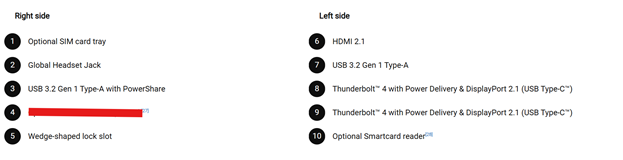
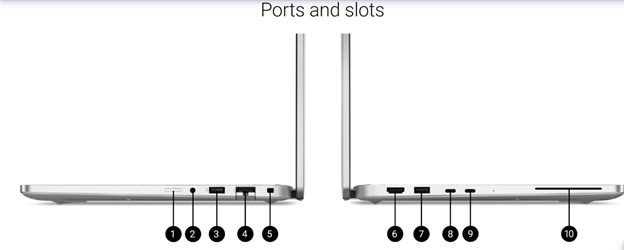
- Full set of modern and legacy ports, including:
- USB-C (with power delivery)
- USB-A
- HDMI
- No RJ-45 Ethernet port
- Physical webcam privacy shutter.
- Optional IR camera for facial authentication (model dependent).
- Lid-close detection sensor for automatic sleep/lock behavior.
- 3-cell 55Wh battery with ExpressCharge and ExpressCharge Boost for rapid charging.
- Tap / Double-Tap: Left-click or open an item
- Two-Finger Tap: Right-click
- Two-Finger Scroll: Scroll vertically or horizontally
- Pinch / Zoom: Zoom in or out using two fingers
- Three-Finger Swipe Up: Open Task View (all windows)
- Three-Finger Swipe Down: Show desktop
- Three-Finger Swipe Left / Right: Switch between recent apps
- Four-Finger Swipe Left / Right: Switch virtual desktops
- Tap: Select an item (equivalent to a left mouse click).
- Double-tap: Open an item.
- Press and hold: Right-click.
- Swipe (one finger): Scroll up or down.
- Flick: Move objects or scroll quickly.
- Swipe from right edge: Open the Notification Center.
- Swipe from left edge: Show Windows widgets.
- Pinch/Spread (two fingers): Zoom in or out.
- Swipe up (three fingers): Open Task View (all open windows).
- Swipe down (three fingers): Minimize all windows (show desktop).
- Swipe left/right (three fingers): Switch between recently opened apps.
- Swipe left/right (four fingers): Switch between virtual desktops.
- Fn + F5: Toggle keyboard backlight (off → low → high)
- Fn + F6 / F7: Decrease / Increase display brightness
- Fn + F8: Switch to external display
- Fn + F1–F4, F9–F12: Application-specific functions such as mute and volume
- Fn + Esc: Toggle the primary behavior of the F1–F12 keys
Note: Keyboard characters may vary depending on the selected language, but shortcut key functions remain the same across all configurations.
Some keys include two symbols. Pressing the key alone types the lower symbol, while pressing Shift + the key types the upper symbol. For example, pressing 2 types 2, and Shift + 2 types @.
The F1–F12 keys on the top row serve as multimedia function keys, as indicated by the icons printed on them. Press the corresponding function key to perform the labeled action. For example, pressing F1 mutes the audio (see table below).
|
Function Key |
Primary Behavior |
|
F1 |
Mute or unmute audio |
|
F2 |
Decrease volume |
|
F3 |
Increase volume |
|
F4 |
Mute or unmute microphone |
|
F5 |
Turn keyboard backlight on/off (optional) |
|
F6 |
Decrease display brightness |
|
F7 |
Increase display brightness |
|
F8 |
Switch to external display |
|
F10 |
Print Screen |
|
F11 |
Home |
|
F12 |
End |
Notes:
- Systems without a backlit keyboard will not support the keyboard-backlight toggle function.
- When supported, pressing F5 cycles the keyboard backlight through off → low → high.


