How to change audio output in Windows 11

Last updated: Sep 18, 2025
480
views

How to change audio output in Windows 11
Follow these simple instructions to check and configure your audio settings.
🔗 Need more help? Visit Video Walkthrough for additional support.
-
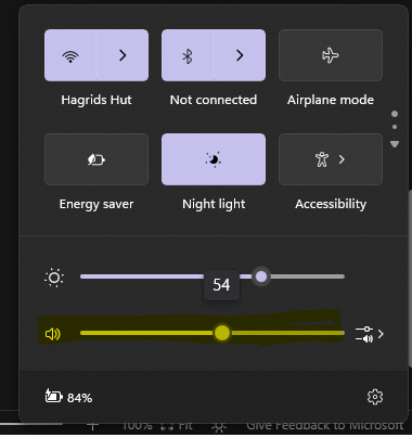
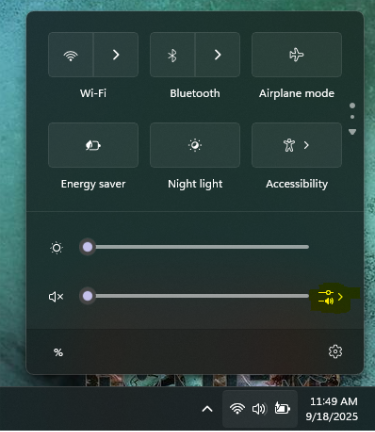
Click the speaker icon on the taskbar (bottom-right corner of your screen).

-
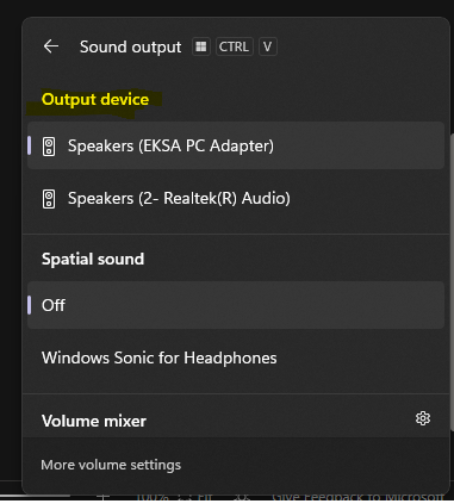
In the pop-up window, select the arrow or open the list of available audio devices.
-
Choose your preferred playback device from the list.
-
Adjust the volume slider as needed and test to confirm audio is working.