218
218
This training guide walks users through the full process of exporting camera footage—from selecting the camera and time range to saving the clip to a USB drive. It also includes simple steps for opening the video in VLC Media Player and setting VLC as the default program for future playback.
Contents
Exporting the Camera Footage (Fast Way)
Exporting the Camera Footage (Search Option)
Playing the Recording in VLC Media Player
Set VLC as the Default Player (if it isn’t already)
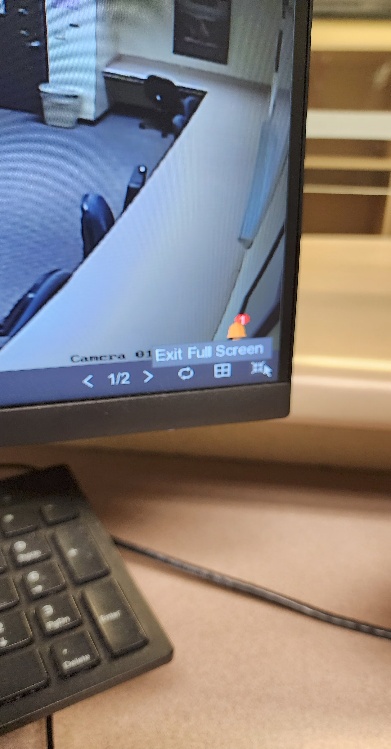
- Exit full-screen mode.
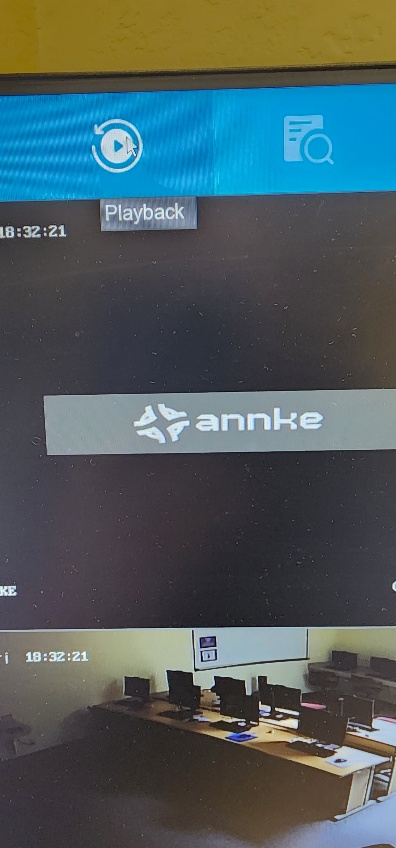
- Go to Playback.
- Select the camera and date you want to review.
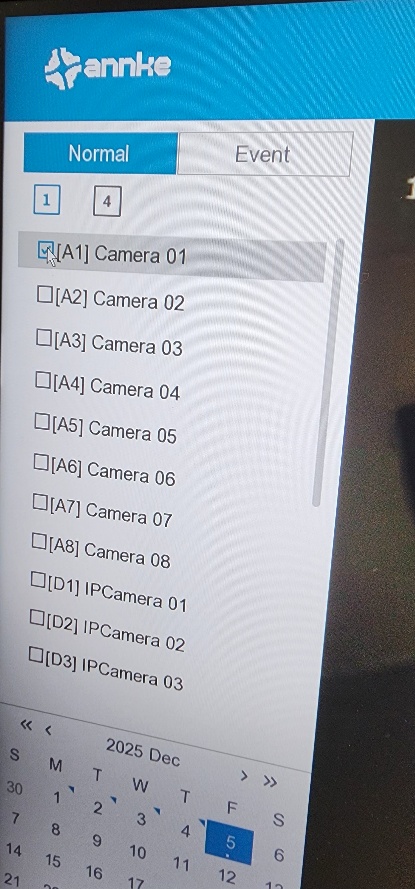
- Drag the red marker to the time you want the clip to begin.
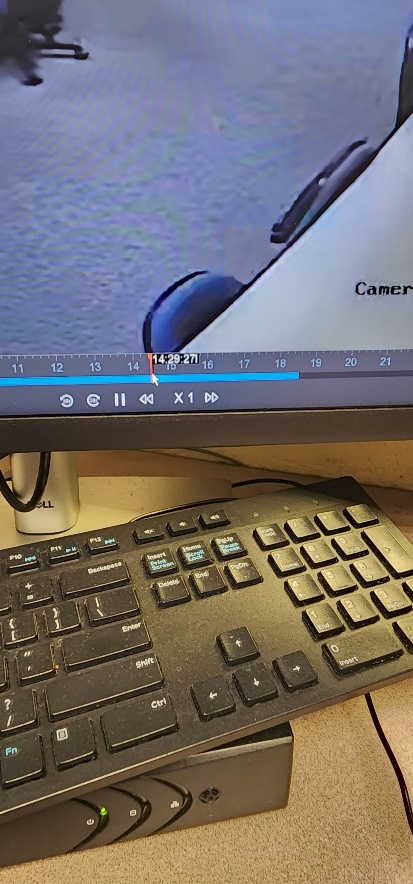
- Hover slightly above the blue bar and click the scissors/clip icon.
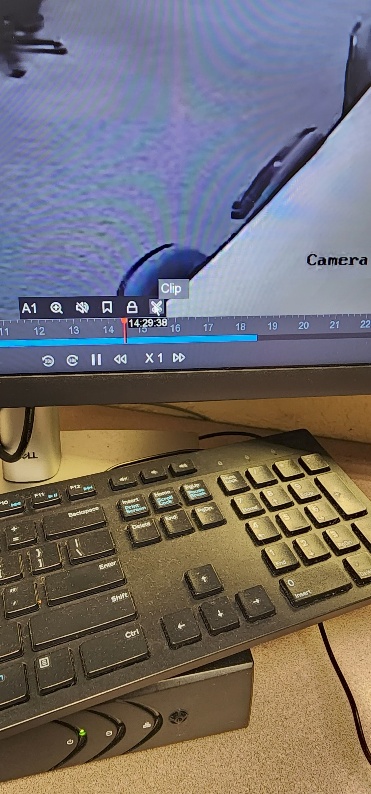
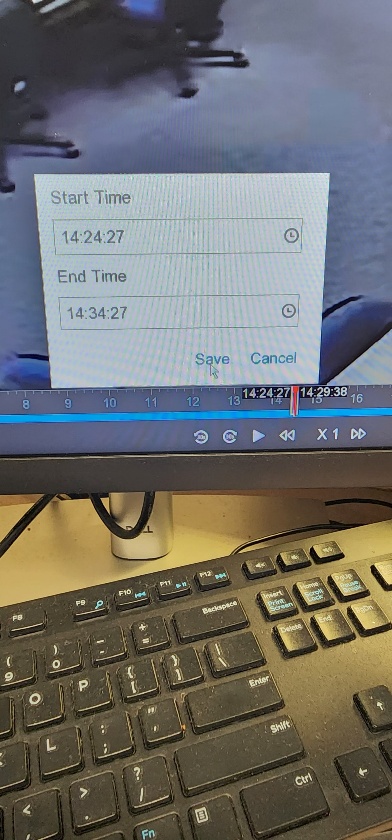
- Drag the red marker to the time you want the clip to stop, then click Save.
- You can also use the dropdown menu to manually select a time range, then click Save.
7. Choose the download type (Video and Log or Player).
1. I recommend Video and Log when exporting to a USB hard drive.
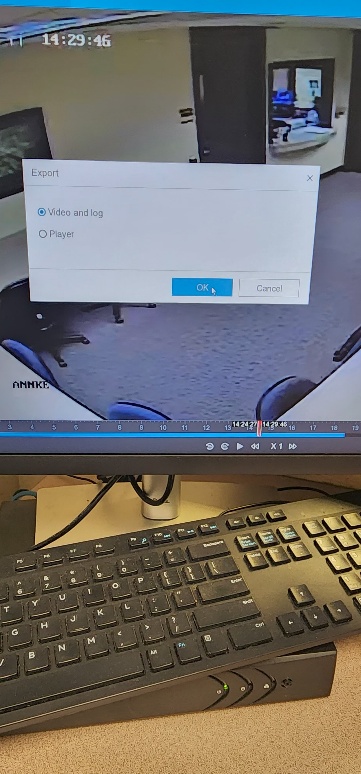
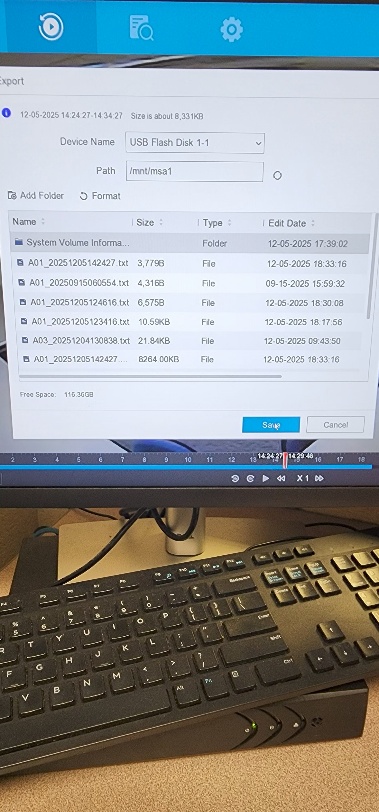
- Click OK, then click Save.
- The file destination has already been set to the USB drive.
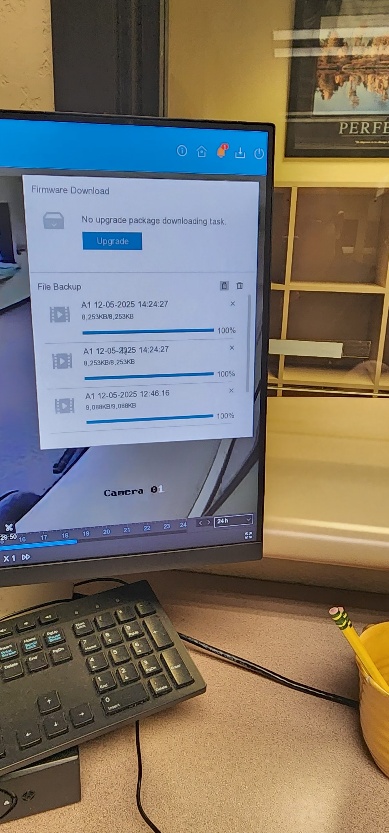
- A notification box will appear in the top-right corner showing the download progress.
1. Plug a USB stick or external hard drive into the USB port.
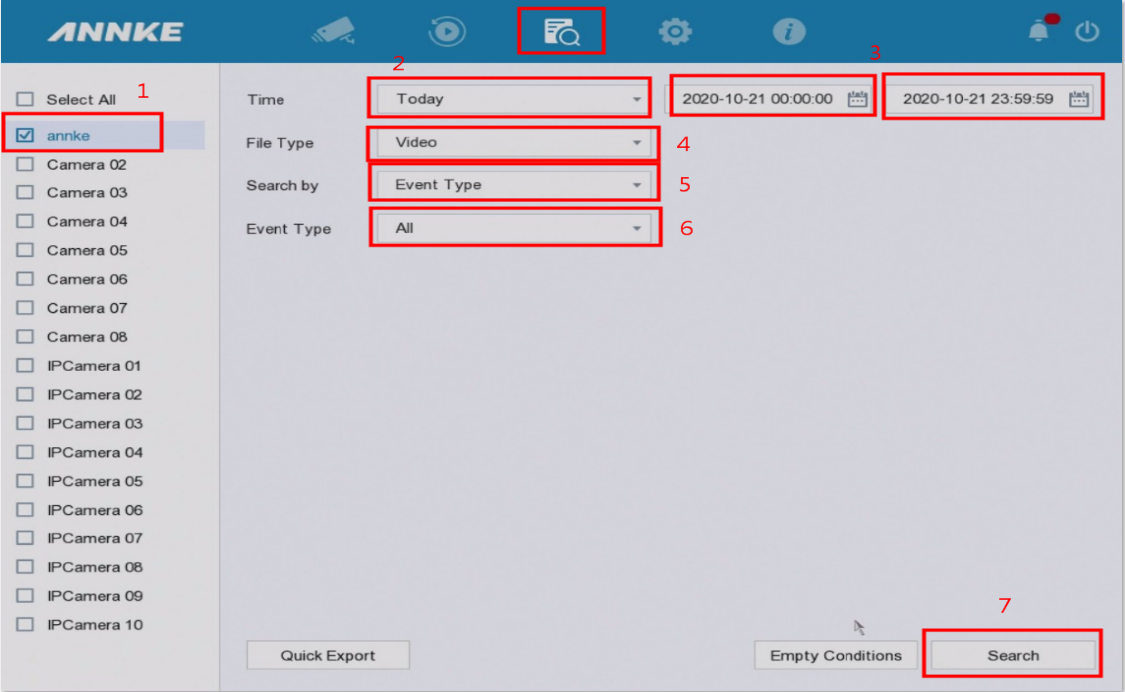
2. Go to Menu-->Search to choose the Channel, Date, Start time, End time, File type, Search type, and Event type. Click to search the file.
3. When the result is found, choose the channel and record you want to back up. Click Export.

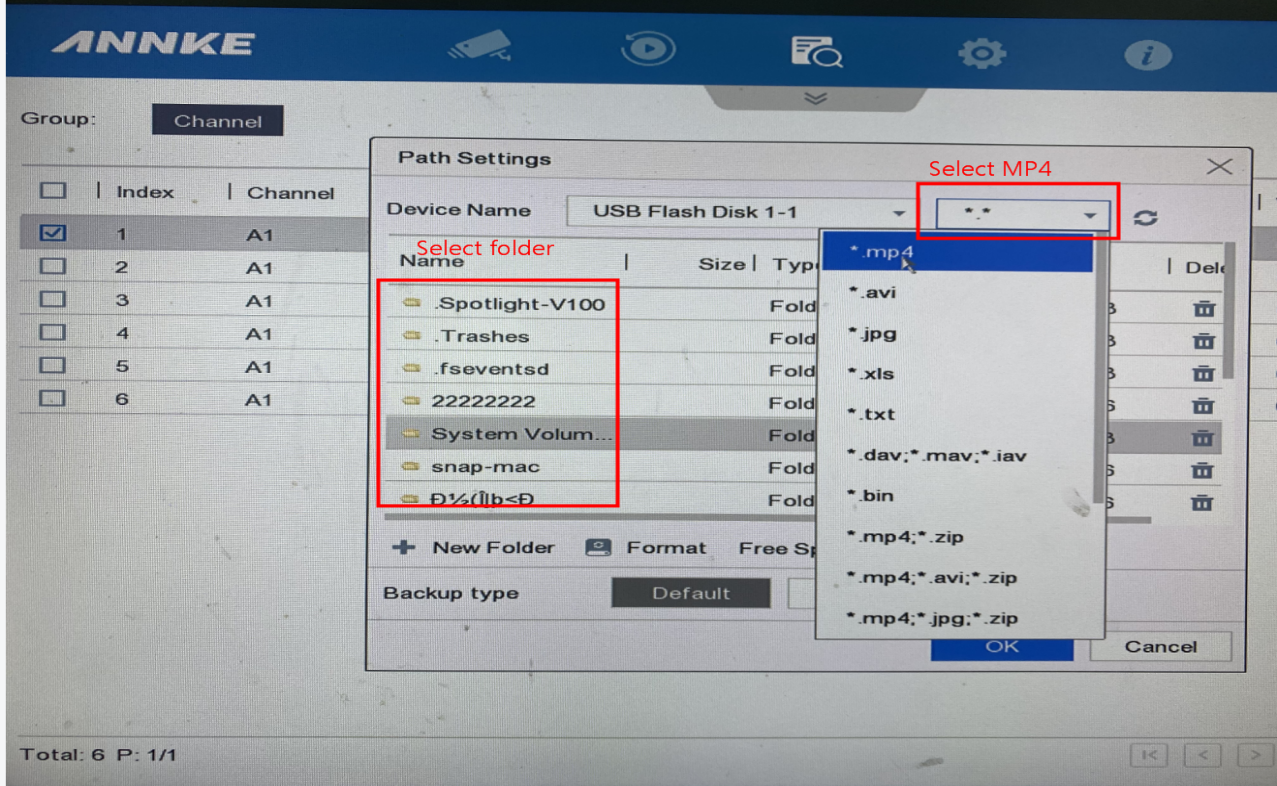
4. When your USB recognized by the system it will show the files on your USB stick, choose the Save Type and folder, click Video and log, Click OK to back up the recording.

5. The download progress can be checked by clicking the Backup button in the right up corner.

6. After you finished export, you can play the video on your PC. We recommend the VLC player
1. Locate the exported video file on the USB drive.
- Right-click the file and select Open With → VLC Media.
- Or you can double-click the video file if you have VLC set as the default.
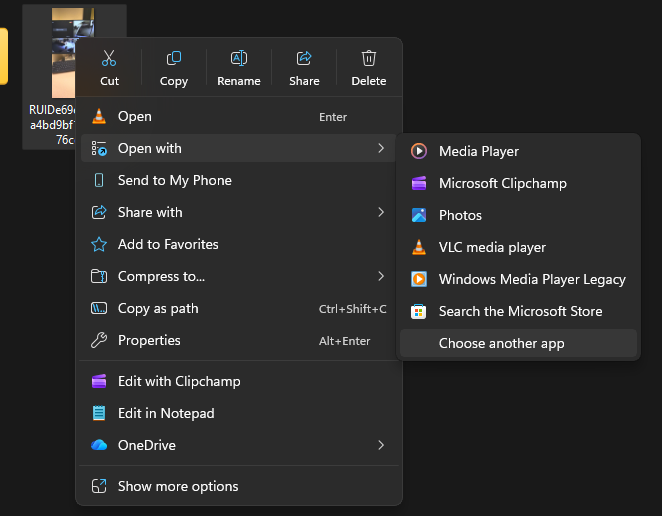
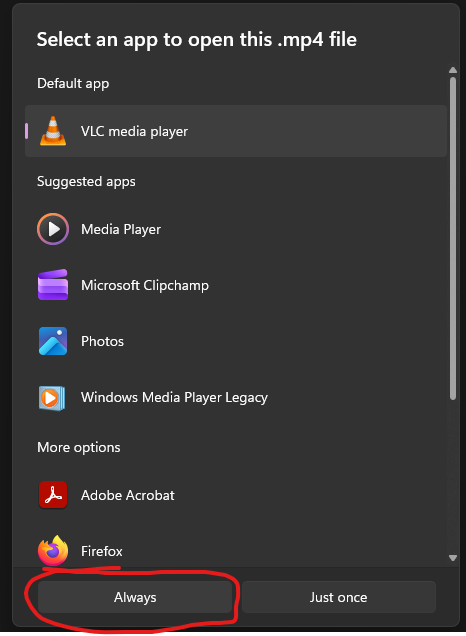
1. Right-click the video file. Select Open With → Choose another app.
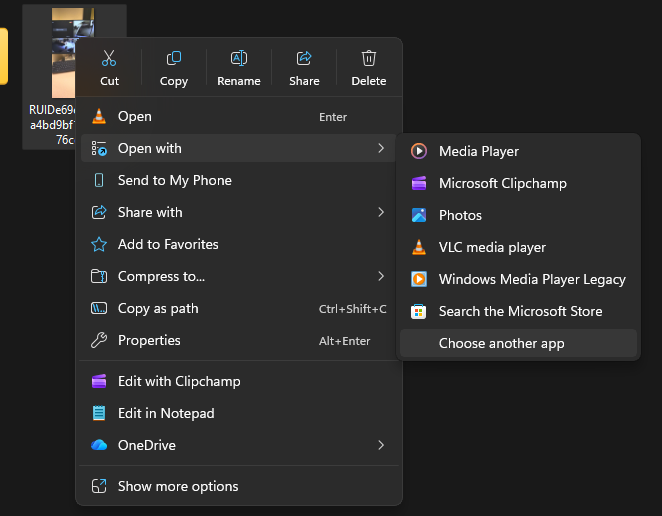
- Click VLC Media Player from the list.
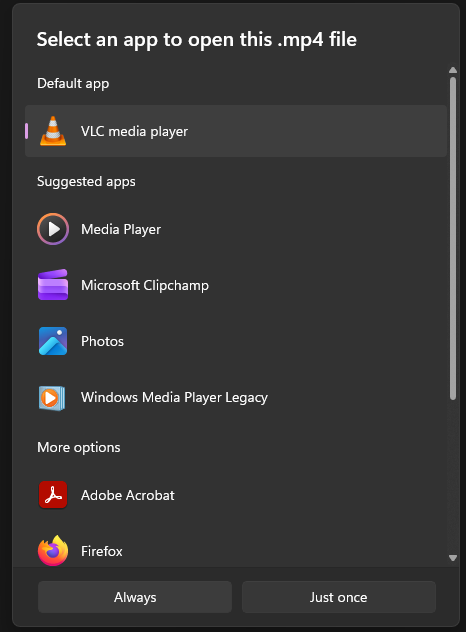
- Click the box for Always use this app to open *.mp4 (depending on the file type).